
n8n Webhook Tutorial: Trigger Workflows from Any App
If you've spent more than a week with n8n, you already know the drill: polling is a crutch. You set up a Schedule trigger, check an API every 5 minutes, and hope nothing slips through the cracks. Webh
If you've spent more than a week with n8n, you already know the drill: polling is a crutch. You set up a Schedule trigger, check an API every 5 minutes, and hope nothing slips through the cracks. Webhooks fix that. Instead of n8n asking "anything new?", the external app tells n8n the moment something happens. This tutorial covers exactly how to set that up — from the n8n side and from the sending app.
How n8n Webhooks Actually Work
n8n exposes a unique URL per workflow. When that URL receives an HTTP request, n8n wakes up the workflow and passes the entire request payload as node output. That's it. The complexity isn't in the concept — it's in getting the details right.
There are two modes you'll switch between constantly:
- Test mode: n8n listens for a single incoming request, then stops. Use this during development — it lets you inspect the raw payload before building the rest of the workflow.
- Production mode: the workflow runs automatically for every incoming request, as long as it's active. This is what you deploy.
The URL format differs between the two. Test URLs contain /webhook-test/ in the path. Production URLs use /webhook/. If your Zapier integration keeps timing out, it's usually because you pasted the test URL into production config.
Setting Up Your First Webhook Trigger
Open a blank workflow in n8n and add a Webhook node as the first node. Configure it like this:
- HTTP Method: POST (almost always — most apps send JSON payloads via POST)
- Path: something readable, like
stripe-paymentorform-submission - Response Mode: "When Last Node Finishes" if the sending app expects a response; "Immediately" if it doesn't care
- Authentication: set Header Auth or Basic Auth if the sending app supports it — never leave a webhook completely open in production
Click "Listen for Test Event", then trigger the webhook from your external app. n8n will capture the payload and show you the exact JSON structure. From there, you reference fields using n8n's expression syntax: {{ $json.body.email }}, {{ $json.body.amount }}, and so on.
Connecting Real Apps to Your Webhook
Most modern SaaS tools have a "webhooks" section buried somewhere in their settings. Here's how the common ones work:
- Stripe: Dashboard → Developers → Webhooks → Add endpoint. Paste your n8n production URL. Select events like
payment_intent.succeeded. Stripe signs every request — validate the signature in n8n using a Function node with the Stripe SDK or a raw HMAC check. - GitHub: Repository Settings → Webhooks → Add webhook. Set content type to
application/json. GitHub sends aX-Hub-Signature-256header for verification. - Typeform: Connect → Webhooks → enable and paste the URL. Typeform POSTs the full form response including all field answers and metadata.
- WhatsApp (via Z-API or similar): paste the webhook URL in the instance config. Every incoming message triggers your workflow — useful for building chatbots or auto-responders.
- Custom apps: any language works. A plain HTTP POST with
Content-Type: application/jsonand a JSON body is all you need. No SDK required.
One thing that trips people up: if your n8n instance is self-hosted on a VPS, the webhook URL must be publicly accessible. The sending app needs to reach your server. Check that your reverse proxy (nginx, Caddy) forwards the correct path and that port 443 is open. Local development with a tunnel tool solves this during testing without exposing anything permanently.
Handling Errors and Edge Cases
Webhooks fail silently if you're not careful. The sending app posts the event, gets a 200 response, and considers its job done — even if your n8n workflow crashed three nodes later. Build defensively:
- Add an Error Trigger workflow that catches failures and sends you a Slack or WhatsApp notification with the workflow name and error message.
- Validate required fields early. Use an IF node right after the Webhook node to check that the payload has what you expect. Return a 400 with a descriptive message if something's missing — some apps will retry on 4xx.
- For high-volume scenarios, consider queuing. Send the webhook payload to a queue (Redis, SQS) and process it asynchronously. n8n isn't designed for thousands of concurrent webhook hits.
- Log every incoming payload to a database or Google Sheet during the first week of a new integration. You'll thank yourself when you need to debug why a specific event didn't process correctly.
If you're building on top of a specific tool — Pipedrive, HubSpot, Stripe, WooCommerce — the webhook setup is always the same pattern: trigger node, data extraction, business logic, action. The differences are in the payload structure and authentication method.
Rather than rebuilding this from scratch every time, check out the ready-made n8n templates — pre-built workflows for the most common webhook use cases, already wired up with the right nodes, error handling, and field mappings. Drop them into your n8n instance and customize from a working baseline instead of debugging a blank canvas.
Webhooks are the backbone of any serious n8n setup. Once you stop polling and start reacting, your automations become faster, cheaper to run, and easier to reason about. The setup cost is low — the operational payoff compounds every day the workflow runs.
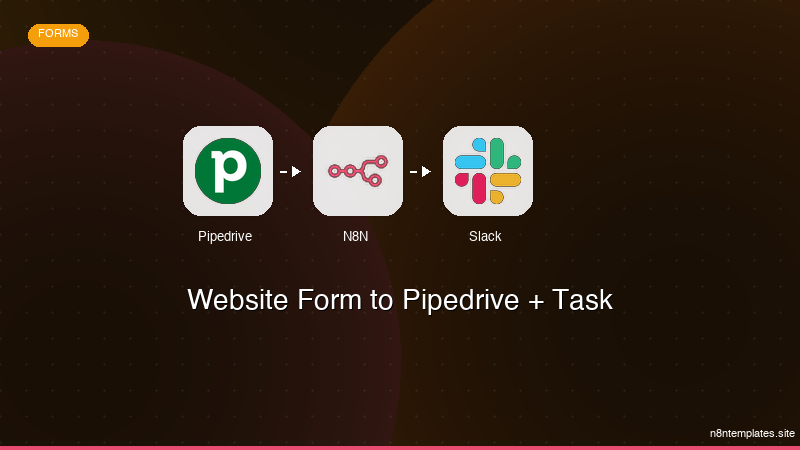
Ja construimos isso pra voce
Nao comece do zero. O Website Form to Pipedrive + Task e um workflow n8n pronto para instalar que faz exatamente isso — em minutos, nao horas.
Instalar por $29 →

