
n8n Scheduling: Run Workflows on a Cron Schedule
If you've spent any time with n8n, you already know the power is in automation — but automation that only runs when you click a button isn't really automation. Scheduling workflows to run on a cron sc
If you've spent any time with n8n, you already know the power is in automation — but automation that only runs when you click a button isn't really automation. Scheduling workflows to run on a cron schedule is how you turn n8n into a true background worker: pulling data, sending reports, syncing systems, all without touching a keyboard.
How the Schedule Trigger Works
n8n ships with a built-in Schedule Trigger node that replaces the old Cron node. It's the entry point for any workflow you want to run at a fixed interval or at a specific time. You'll find it under "Trigger" when you add a new node.
The Schedule Trigger supports three modes:
- Every X minutes/hours/days — for simple intervals like "every 30 minutes" or "every 24 hours"
- Specific time — run once per day at 9:00 AM, for example
- Custom cron expression — full control over exactly when the workflow fires
For most use cases, the interval or specific time options are enough. But once you need things like "every Monday and Wednesday at 8 AM" or "on the 1st of every month," you'll want to drop into cron syntax.
Cron Syntax Cheat Sheet
n8n cron expressions follow the standard 5-field format: minute hour day-of-month month day-of-week. The timezone is whatever your n8n instance is configured to use — something to double-check if you're running on a VPS with UTC set as default.
0 9 * * 1-5— 9:00 AM every weekday*/15 * * * *— every 15 minutes0 0 1 * *— midnight on the 1st of every month30 8 * * 1— 8:30 AM every Monday0 6,18 * * *— 6:00 AM and 6:00 PM daily
One practical tip: if your workflow depends on external APIs that have rate limits or maintenance windows, stagger your cron times. Don't run everything at the top of the hour — offset by a few minutes to avoid thundering herd problems, especially if you're running multiple scheduled workflows.
Common Patterns Worth Knowing
Scheduled workflows follow predictable patterns depending on what they're doing. Here's how to think about structuring them:
- Data sync jobs — fetch from source A, transform, write to source B. Keep these idempotent. Use a timestamp or unique ID check so re-runs don't create duplicates.
- Report generation — pull data, aggregate with a Function node or Code node, send via email or Slack. Build the date range dynamically using
{{ $now.minus(1, 'day').startOf('day') }}so the report always covers the right window. - Health checks and alerts — ping an endpoint, check a condition in an IF node, send an alert only when something is wrong. Use an IF node to short-circuit the workflow when everything is healthy — no need to send a "still working" message every hour.
- Queue draining — if you're writing tasks to a database or a queue (Airtable, Notion, Postgres), a scheduled workflow can poll for pending items and process them in batches.
The key discipline with scheduled workflows is error handling. Unlike webhook-triggered workflows where a user is waiting for a response, scheduled workflows fail silently unless you build in notifications. Always add an error workflow in the workflow settings, or at minimum connect a Slack or email node to catch failures.
Running Multiple Schedules From One Workflow
You can attach multiple Schedule Trigger nodes to the same workflow if you need different schedules to kick off the same logic. For example, a heavy sync might run once per day at night, while a lightweight status check runs every hour. Both triggers connect to the same downstream nodes.
This is cleaner than duplicating the entire workflow. The tradeoff is that if the workflow runs at different times for different reasons, you may need an IF node early in the flow to branch behavior based on context — though in most cases the logic is identical and you don't need to branch at all.
If you need to pass different parameters depending on which schedule fired, use a Set node right after each trigger to define a variable (like mode = "daily" or mode = "hourly"), then reference that variable downstream.
Getting Started Faster
Building scheduled workflows from scratch takes time — especially when you're wiring up common patterns like daily reports, CRM syncs, or Slack digests. If you'd rather start from something that already works and adapt it to your stack, check out the ready-made n8n templates — each one is a complete workflow you can import, configure with your credentials, and have running in minutes.
Scheduling is one of those features that looks simple until you're dealing with timezones, flaky APIs, and workflows that silently stopped running two weeks ago. Get the structure right from the start — idempotent logic, error handling, and sensible cron offsets — and your scheduled workflows will run for months without needing attention.
Ja construimos isso pra voce
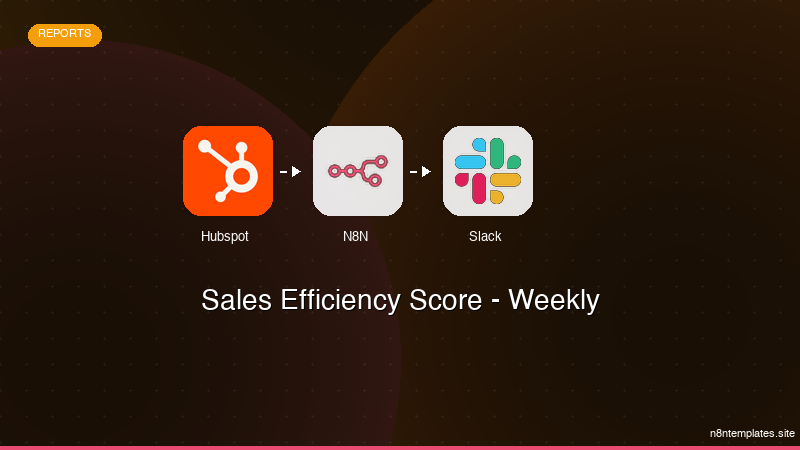
Nao comece do zero. O Sales Efficiency Score - Weekly e um workflow n8n pronto para instalar que faz exatamente isso — em minutos, nao horas.
Instalar por $59 →

