
How to Use the n8n HTTP Request Node
The HTTP Request node is the backbone of most real-world n8n workflows. If you want to connect n8n to any API that doesn't have a dedicated integration — or if you need more control than a built-in no
The HTTP Request node is the backbone of most real-world n8n workflows. If you want to connect n8n to any API that doesn't have a dedicated integration — or if you need more control than a built-in node gives you — this is the node you'll be reaching for constantly. Here's a practical walkthrough of how it works and where it gets tricky.
Setting Up Your First HTTP Request
Add the HTTP Request node to your workflow and you'll immediately see the two fields that matter most: Method and URL. Method maps directly to REST conventions — GET for fetching data, POST for creating, PUT/PATCH for updating, DELETE for removing. The URL is just the endpoint you're targeting.
For a basic GET request, that's it. Paste the URL, hit execute, and you'll see the response in the output panel. But most APIs require more than that, which is where the rest of the configuration comes in:
- Authentication — use the built-in credential system. Don't hardcode tokens. n8n supports Header Auth, OAuth2, Basic Auth, and API Key out of the box.
- Headers — set Content-Type, Accept, or any custom headers the API requires. Expand the Headers section and add key-value pairs.
- Query Parameters — for filtering or pagination, use the Query Parameters section instead of appending strings to the URL manually.
- Body — for POST/PUT requests, choose JSON and write your payload directly, or map fields from upstream nodes using expressions.
Working with Dynamic Values and Expressions
Where the HTTP Request node gets genuinely powerful is when you stop hardcoding values and start pulling them from previous nodes. Every field in the node accepts n8n expressions using the {{ }} syntax.
Say you have a previous node that outputs a list of user IDs and you want to hit an API endpoint for each one. Reference the value with {{ $json.userId }} in the URL field — n8n will automatically loop through each item in the input and execute the request once per item. No extra configuration needed for iteration.
For the request body, you can build the JSON payload dynamically the same way:
- Map field values from input items:
{{ $json.email }} - Transform values inline:
{{ $json.name.toLowerCase() }} - Combine static and dynamic values:
User-{{ $json.id }}-{{ $now.toFormat('yyyy-MM-dd') }} - Access nested objects:
{{ $json.address.city }}
One thing that trips people up: if you're sending a JSON body, make sure you've set the Content-Type header to application/json and selected "JSON" as the body content type. Sending raw text when the API expects JSON is one of the most common causes of mysterious 400 errors.
Handling Responses and Errors
By default, the HTTP Request node returns the full response body as JSON and passes it to the next node. The response is available in $json for downstream nodes, so if the API returns { "data": { "id": 123 } }, you access it with {{ $json.data.id }}.
For non-JSON responses — XML, plain text, binary files — change the Response Format option accordingly. Binary data (PDFs, images) gets stored as a binary property that you can then pass to a Write Binary File node or attach to an email.
Error handling is worth setting up explicitly. The default behavior is to throw an error and stop execution on any non-2xx status code. For production workflows, toggle Continue on Fail in the node settings and check the status code downstream to handle failures gracefully. You can also enable Include Response Headers and Status to get the HTTP status code alongside the body — useful when the API signals errors through headers rather than response body content.
- Use Retry on Fail for flaky external APIs — configure max retries and wait time between attempts.
- Set a reasonable Timeout — default is no timeout, which will hang workflows against slow APIs.
- For paginated APIs, use a Loop node wrapping the HTTP Request and increment the page parameter until the response signals the last page.
Pagination, Rate Limits, and Performance
Most production API integrations require handling pagination and rate limits. n8n doesn't do this automatically — you have to build it. The standard pattern is a Loop node with an HTTP Request inside it, a counter expression tracking the current page, and an IF node checking whether the last response returned fewer results than the page size (which signals you've hit the end).
For rate limits, the simplest approach is a Wait node after your HTTP Request set to pause for a fixed interval. If the API returns rate limit headers (like X-RateLimit-Remaining), you can read those and use a conditional wait only when you're close to the limit.
If you're building workflows that make dozens of API calls, batching with the Split In Batches node reduces the chance of hitting limits and makes the workflow easier to debug when something fails partway through.
The HTTP Request node covers the vast majority of API integration work you'll do in n8n. Once you're comfortable with expressions, credential management, and error handling, you can connect to almost anything. If you'd rather skip the setup time, check out the ready-made n8n templates — pre-built workflows for common integrations that you can import and have running in minutes.
Ja construimos isso pra voce
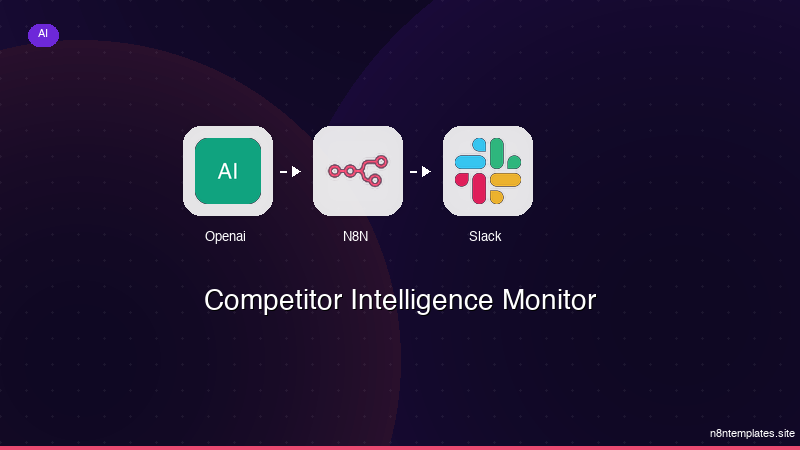
Nao comece do zero. O Competitor Intelligence Monitor e um workflow n8n pronto para instalar que faz exatamente isso — em minutos, nao horas.
Instalar por $59 →

