
How to Sync Pipedrive Deals to Google Sheets Automatically
If you're managing a sales pipeline in Pipedrive and still copying deal data into Google Sheets by hand, you're leaking time. Every deal update, stage change, or new contact that requires a manual exp

If you're managing a sales pipeline in Pipedrive and still copying deal data into Google Sheets by hand, you're leaking time. Every deal update, stage change, or new contact that requires a manual export is work that shouldn't exist. This guide shows you how to automate the sync between Pipedrive and Google Sheets using n8n — so your spreadsheet stays current without anyone touching it.
Why Pipedrive and Google Sheets Need to Talk
Pipedrive is built for sales activity. Google Sheets is built for analysis, reporting, and sharing data with people who don't live inside your CRM. The problem is they don't naturally stay in sync. Finance teams want pipeline data in Sheets for forecasting. Marketing wants deal stages to trigger campaign logic. Management wants a dashboard that doesn't require a Pipedrive seat.
The manual workaround — exporting CSVs, pasting data, running reports — breaks down fast. Data goes stale. Someone forgets to update. You end up making decisions on numbers that are days old. Automation fixes this at the root.
How the n8n Workflow Works
n8n is a self-hostable workflow automation tool that connects APIs without requiring custom code for every integration. A Pipedrive-to-Sheets sync in n8n typically looks like this:
- Trigger: A webhook from Pipedrive fires whenever a deal is created, updated, or changes stage. Alternatively, a scheduled poll checks Pipedrive every 15 or 30 minutes.
- Filter node: Optional step to only pass through deals that match specific criteria — a certain pipeline, stage, owner, or value threshold.
- Transform node: Maps Pipedrive field names to your Google Sheets column headers. Handles date formatting, currency conversion, and custom fields.
- Google Sheets node: Appends a new row or updates an existing one using the deal ID as the key. Prevents duplicates. Keeps history intact.
The result is a Google Sheet that reflects your Pipedrive pipeline in near real-time, with no manual intervention after the workflow is set up.
Setting It Up: What You Actually Need
Before building, confirm you have the following in place:
- Pipedrive API token: Found under Settings → Personal Preferences → API in your Pipedrive account. You'll use this to authenticate the Pipedrive node in n8n.
- Google Sheets API access: Create a service account in Google Cloud Console, share your target spreadsheet with that service account's email, and download the JSON credentials file. n8n uses this to write to Sheets without OAuth prompts.
- n8n instance: Either self-hosted on a VPS or running on n8n.cloud. The workflow runs headlessly once deployed.
- Target spreadsheet: Create it in advance with column headers matching the deal fields you want — Deal Name, Stage, Value, Owner, Created Date, Close Date, Deal ID.
The Pipedrive node in n8n supports both webhook-based triggers (instant) and poll-based triggers (scheduled). For most teams, a 15-minute poll is accurate enough and simpler to maintain than managing webhook endpoints.
Common Issues and How to Handle Them
A few things trip people up when building this integration for the first time:
- Duplicate rows: If your trigger fires on every update, you'll get multiple rows for the same deal. Fix this by using an "Update or Append" strategy — check for an existing row by Deal ID before writing, and update it instead of adding a new one.
- Custom fields not syncing: Pipedrive custom fields come through with hash-based keys, not readable names. You'll need to map them explicitly in the Transform node using the field key from Pipedrive's API response.
- Timezone mismatches: Pipedrive stores dates in UTC. If your Sheet is used by a team in a different timezone, add a conversion step so dates display correctly in local time.
- Rate limits: Google Sheets API allows 300 write requests per minute per project. For high-volume pipelines, batch your writes or add a rate-limit node to avoid hitting the ceiling.
None of these are blockers — they're predictable edge cases that a well-built workflow handles upfront rather than patching after the fact.
Skip the Build — Use a Pre-Built Template
Building this from scratch takes a few hours if you know what you're doing. If you'd rather start from a working workflow and adapt it to your pipeline structure, there are ready-made n8n templates that cover the Pipedrive-to-Sheets sync with the deduplication logic, field mapping, and error handling already built in.
Pre-built templates are worth it when the integration logic is known and repeatable. You're not solving a novel problem — you're connecting two well-documented APIs. Starting from a tested workflow cuts setup time significantly and gives you a reference point when something breaks at 2am before a board meeting.
Once the sync is running, you'll stop thinking about it. Your Sheets stay current, your reports reflect reality, and the people who need pipeline visibility don't need a Pipedrive login to get it. That's the point of automation — not to be impressive, but to make the manual version feel absurd in hindsight.
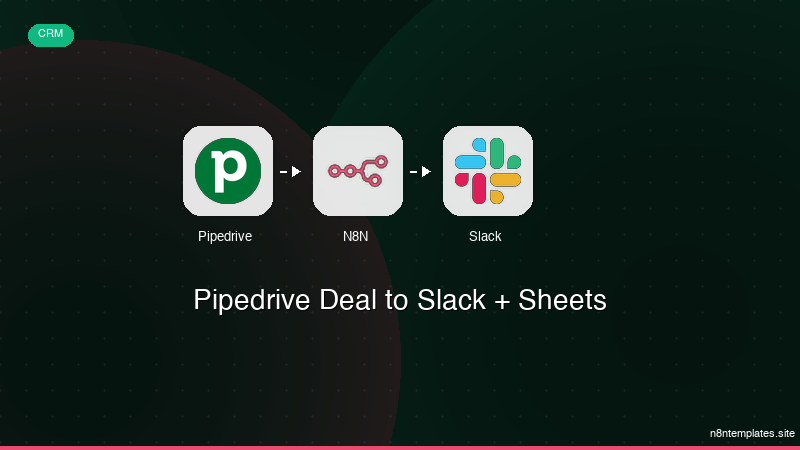
Ja construimos isso pra voce
Nao comece do zero. O Pipedrive Deal to Slack + Sheets e um workflow n8n pronto para instalar que faz exatamente isso — em minutos, nao horas.
Instalar por $29 →

