
How to Sync Google Sheets with Any CRM Using n8n
If you're still manually copying leads from your CRM into a Google Sheet — or updating records by hand after a sale closes — you're burning time that a 15-minute n8n workflow could save permanently. S
If you're still manually copying leads from your CRM into a Google Sheet — or updating records by hand after a sale closes — you're burning time that a 15-minute n8n workflow could save permanently. Syncing Google Sheets with any CRM isn't a complex integration project. It's a weekend automation that pays back every single week.
Why Google Sheets and CRMs Drift Apart
CRMs like HubSpot, Pipedrive, and Salesforce are where your team works. Google Sheets is where you analyze, report, and share data with people who don't have CRM access. The problem: these two systems have no awareness of each other. Every time a deal moves stages, a contact gets created, or a tag changes, that information lives in a silo.
The usual workarounds — scheduled CSV exports, Zapier, manual copy-paste — all break down at scale or cost too much. n8n sits in the middle and solves this with direct API connections, running on your own infrastructure at zero per-execution cost.
How the Sync Architecture Works in n8n
A reliable Sheet-to-CRM sync has two directions, and you should build both:
- CRM → Sheet (read flow): Triggered by a webhook or a polling schedule. When a contact is created or a deal updates in the CRM, n8n catches the event, maps the fields, and appends or updates a row in Google Sheets using the Google Sheets node.
- Sheet → CRM (write flow): A trigger watches for new rows or edits in a specific sheet range. When a row changes, n8n reads the data and calls the CRM's REST API to create or update the corresponding record.
The key node you'll use for Google Sheets is the built-in Google Sheets node — it handles OAuth, supports append, update, and read operations, and lets you map columns directly to JSON fields. For the CRM side, n8n has native nodes for HubSpot, Pipedrive, Salesforce, and Zoho. For anything else, the HTTP Request node handles any REST API with auth headers.
Step-by-Step: Pipedrive Deals to Google Sheets
Here's a concrete implementation for Pipedrive. The same logic applies to any CRM with a webhook or polling API.
- Step 1 — Trigger: Use the Pipedrive Trigger node, subscribe to the
deal.updatedanddeal.addedevents. Pipedrive will POST to your n8n webhook URL on every change. - Step 2 — Filter: Add an IF node to filter only the deal stages you care about. No point logging every intermediate stage if your sheet only tracks closed-won deals.
- Step 3 — Map fields: Use a Set node to reshape the Pipedrive payload into the exact columns your sheet expects: deal name, owner email, value, close date, stage.
- Step 4 — Write to Sheet: Google Sheets node, operation
Append or Update Row. Use the deal ID as the matching column so you don't create duplicate rows when a deal updates. - Step 5 — Error handling: Add an Error Trigger node that sends a Slack message or email if any execution fails. Silent failures in background workflows are how data gets stale without anyone noticing.
Total execution time per event: under 2 seconds. No polling delays, no rate limit issues, no monthly costs per task.
Common Issues and How to Fix Them
A few problems show up consistently when building this kind of sync:
- Duplicate rows: Always use "Append or Update" with a unique key (CRM record ID), never plain "Append." Plain append creates a new row on every webhook fire, including updates.
- OAuth token expiry: Google OAuth tokens expire. In n8n, use a service account instead of OAuth for production workflows — service accounts don't expire and don't require user interaction to re-authenticate.
- Field mapping drift: CRMs add and rename fields in API responses. Use a Set node to explicitly map only the fields you need rather than passing the full payload to Sheets. This insulates your workflow from upstream API changes.
- Timezone mismatches: Date fields from CRM APIs are often in UTC. Google Sheets stores dates in the spreadsheet's local timezone. Add a date conversion step using n8n's built-in date functions to avoid off-by-one-day errors in reports.
- Rate limits on the write side: Google Sheets API has a limit of 60 writes per minute per user. If you're syncing high-volume events, batch your updates using n8n's Merge node before hitting the Sheets API.
Skip the Build — Use a Pre-Built Template
Building this from scratch is doable, but it takes time to get the edge cases right — especially the duplicate handling, error triggers, and field mapping. If you'd rather deploy a working workflow in minutes instead of hours, check out the collection of ready-made n8n templates that include pre-configured Google Sheets sync workflows for Pipedrive, HubSpot, and other CRMs.
Syncing Google Sheets with your CRM is one of those automations that looks small but compounds fast. Once it's running, your reports are always current, your team stops asking for data exports, and you stop being the person who has to pull them. Build it once, forget it exists, and let it run.
Ja construimos isso pra voce
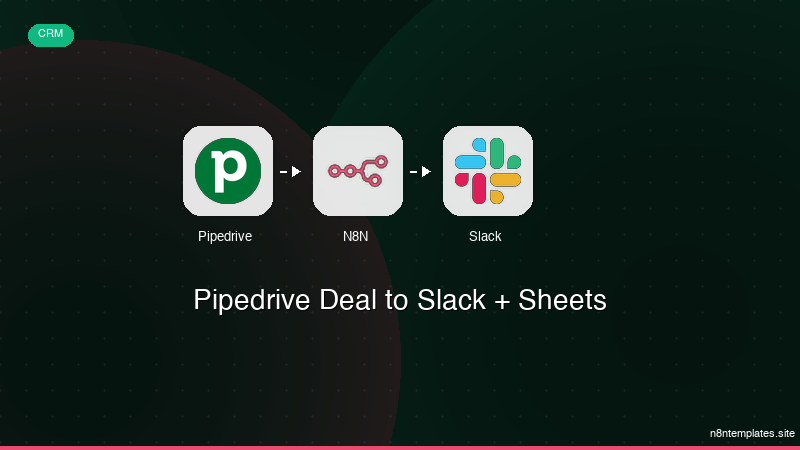
Nao comece do zero. O Pipedrive Deal to Slack + Sheets e um workflow n8n pronto para instalar que faz exatamente isso — em minutos, nao horas.
Instalar por $29 →

