
How to Send Automated WhatsApp Messages with n8n
If you're still sending WhatsApp messages manually — reminders, confirmations, alerts — you're wasting time that a workflow can handle in milliseconds. n8n makes it straightforward to automate WhatsAp
If you're still sending WhatsApp messages manually — reminders, confirmations, alerts — you're wasting time that a workflow can handle in milliseconds. n8n makes it straightforward to automate WhatsApp messaging without writing a backend service from scratch. Here's how to set it up properly.
What You Need Before Starting
Before building the workflow, get these pieces in place:
- n8n instance — self-hosted or cloud. Either works.
- WhatsApp Business API access — through Meta directly or a provider like Twilio, Z-API, or 360dialog. The official API requires a verified business account. Third-party providers are faster to set up but add a layer of cost.
- A trigger source — whatever fires the message: a form submission, a CRM event, a scheduled time, a webhook from another system.
The choice of WhatsApp provider matters more than most tutorials admit. Meta's Cloud API is free per-message but has stricter approval processes for message templates. Providers like Z-API let you connect a regular WhatsApp number via QR code — faster to prototype, but technically against WhatsApp's ToS for production use. For anything serious, go with the official API.
Building the Workflow in n8n
The core structure is simple: trigger → optional data fetch → HTTP Request node → done. Here's a concrete example using Meta's WhatsApp Cloud API:
- Trigger node — use Webhook, Schedule, or any app node (Typeform, Airtable, HubSpot, etc.) depending on what initiates the message.
- HTTP Request node — set method to POST, URL to
https://graph.facebook.com/v18.0/YOUR_PHONE_NUMBER_ID/messages, and add your access token in the Authorization header asBearer YOUR_TOKEN. - Request body — send JSON with
messaging_product: "whatsapp",toset to the recipient's number in E.164 format (+5511999999999), and either a template message or a free-form text message.
For template messages (required for outbound messages to users who haven't messaged you first), the body looks like this:
type: "template"template.name— the approved template name from Meta Business Managertemplate.language.code— e.g."en_US"or"pt_BR"template.components— array with parameter values to fill in template variables
Map dynamic values from your trigger node directly into the component parameters. If your trigger fires with a customer name and order number, reference them with n8n expressions like {{ $json.customer_name }}.
Handling Common Failure Points
Automated messaging breaks in predictable ways. Build for them from the start:
- Invalid phone numbers — add a Function node before the HTTP Request to validate E.164 format. Numbers missing the country code will return a 400 from the API and silently drop the message.
- Rate limits — Meta enforces per-phone-number rate limits. If you're sending in bulk, add a Wait node between iterations or split into batches using the Split In Batches node.
- Template rejection — Meta reviews templates before approval, which can take 24–48 hours. Have a fallback flow or queue messages until the template clears.
- Token expiration — long-lived access tokens still expire. Store the token in n8n credentials (not hardcoded in the node) and rotate it before it expires. Set a calendar reminder or a separate n8n workflow to alert you.
Add error handling with n8n's built-in Error Trigger workflow. Route failed executions to a Slack message or a row in Airtable so nothing disappears silently.
Practical Use Cases Worth Automating
Once the base workflow runs, the same pattern covers a wide range of real business flows:
- Appointment reminders — trigger from Google Calendar or Calendly 24 hours before the event
- Order confirmations — fire from a Shopify or WooCommerce webhook on new orders
- Lead follow-ups — connect to your CRM and send a message the moment a new lead comes in
- Payment alerts — trigger from Stripe or a payment gateway webhook on successful charge or failed payment
- Internal team notifications — ping a team WhatsApp number when a critical event happens in any connected system
Each of these is essentially the same n8n pattern with a different trigger and different template. Once you've built one, the rest take minutes.
If you'd rather skip the setup time, there are ready-made n8n templates that cover WhatsApp automation and dozens of other common workflows — tested, documented, and ready to import into your n8n instance. Building from scratch teaches you the system; starting from a working template gets you to production faster.
Ja construimos isso pra voce
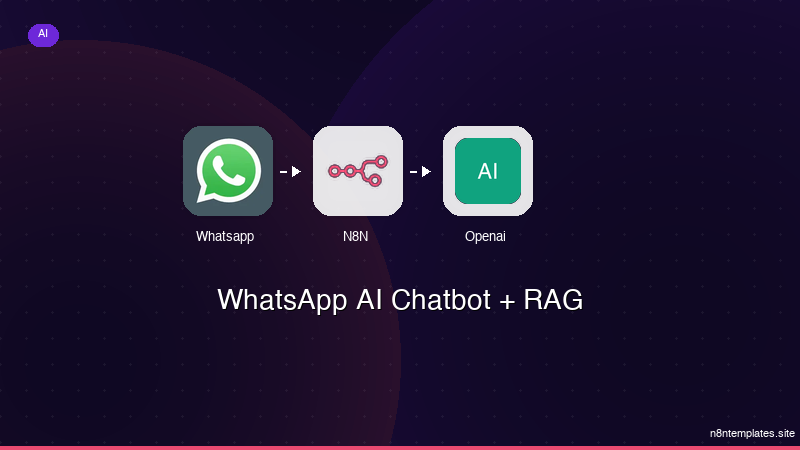
Nao comece do zero. O WhatsApp AI Chatbot + RAG e um workflow n8n pronto para instalar que faz exatamente isso — em minutos, nao horas.
Instalar por $59 →

