
How to Connect Pipedrive to n8n: Full Tutorial
If you're already using Pipedrive as your CRM and n8n as your automation backbone, connecting the two is one of the highest-leverage moves you can make. You get real-time deal updates triggering workf
If you're already using Pipedrive as your CRM and n8n as your automation backbone, connecting the two is one of the highest-leverage moves you can make. You get real-time deal updates triggering workflows, contacts syncing automatically, and sales data flowing into wherever you need it — without writing a custom integration from scratch. This guide walks through exactly how to set it up.
Getting Your Pipedrive API Token
Before anything else, you need your Pipedrive API credentials. Pipedrive uses personal API tokens for most integrations.
- Log into Pipedrive and go to Settings → Personal Preferences → API
- Copy your personal API token — treat it like a password
- If you're on a company account, confirm with your admin that your user has API access enabled
For OAuth-based setups (needed if you're building something for multiple Pipedrive accounts), you'll register an app in the Pipedrive Developer Hub and get a client ID and secret. For personal automation, the API token is enough.
Setting Up the Pipedrive Node in n8n
n8n has a native Pipedrive node that covers the most common operations — creating and updating deals, persons, organizations, activities, and notes. Here's how to wire it up:
- In your n8n canvas, search for the Pipedrive node and add it
- Click Create New Credential and paste your API token
- n8n will verify the connection immediately — if it fails, double-check the token and that your Pipedrive account is active
- Choose your Resource (Deal, Person, Organization, etc.) and Operation (Get, Create, Update, Delete, Get All)
For reading data, use Get All with filters to pull specific records. For writing, map your input fields carefully — Pipedrive is strict about required fields like title for deals and name for persons. Missing them throws a 400 error that can be hard to debug if you're not looking at the response body.
Using Webhooks to Trigger Workflows in Real Time
Polling Pipedrive every few minutes wastes API quota and adds latency. Webhooks are the right approach for event-driven workflows.
- In n8n, use a Webhook trigger node and copy the generated URL
- In Pipedrive, go to Settings → Tools and integrations → Webhooks
- Create a new webhook, paste the n8n URL, and select the event type — for example,
deal.updatedorperson.added - Pipedrive will send a POST request to n8n every time that event fires
The payload includes the full object before and after the change, so you can build conditional logic — for instance, only continue the workflow if a deal moved to a specific stage. Use an IF node to check current.status or current.stage_id against your target value.
One important gotcha: Pipedrive webhooks don't retry aggressively on failure. If your n8n instance is down when the event fires, you'll miss it. For critical workflows, add a scheduled fallback that polls for recent changes as a safety net.
Common Automation Patterns That Actually Work
Once the connection is stable, these are the workflows that consistently deliver value in real sales operations:
- Deal won → send onboarding email + create task in project tool: Trigger on
deal.updatedwhere status changes towon. Send a personalized email via Gmail or SMTP, then create a card in Trello, Notion, or Asana for the onboarding team. - New person added → enrich with Clearbit or Hunter.io: Trigger on
person.added, call an enrichment API, then update the Pipedrive person record with company size, LinkedIn URL, or email confidence score. - Stalled deal alert → Slack notification: Schedule a daily check that pulls deals with
last_activity_dateolder than 7 days in active stages and posts a summary to a Slack channel. Keeps the pipeline from going cold silently. - Form submission → create deal + person: Connect a Typeform or Tally webhook to n8n, parse the fields, check if the person already exists in Pipedrive using their email, and either create or update the record. Avoids duplicates without manual deduplication.
These patterns are straightforward to build from scratch, but if you want to skip the setup time, there are ready-made n8n templates specifically built for Pipedrive integrations — fully documented and ready to import.
Troubleshooting the Most Common Issues
A few problems come up almost every time someone sets up this integration for the first time:
- 401 Unauthorized: Your API token is wrong or expired. Regenerate it in Pipedrive settings and update the credential in n8n.
- Field ID vs. field name confusion: Custom fields in Pipedrive use hash-like IDs, not human-readable names. Use the Get All Fields operation to map IDs to names before referencing them in expressions.
- Webhook not firing: Check that the webhook is active in Pipedrive and that your n8n instance URL is publicly accessible. Local development with localhost won't work — use a tunnel like ngrok or deploy to your server.
- Rate limits: Pipedrive's API allows up to 100 requests per 2 seconds on most plans. If you're syncing large datasets, add a Wait node between batches to avoid hitting the limit.
Pipedrive and n8n are a solid combination once the initial setup is out of the way. The native node handles the basics well, webhooks keep everything real-time, and the flexibility of n8n means you can route data anywhere in your stack without writing custom code. Start with one trigger, one action, and get that working end-to-end before adding complexity.
Ja construimos isso pra voce
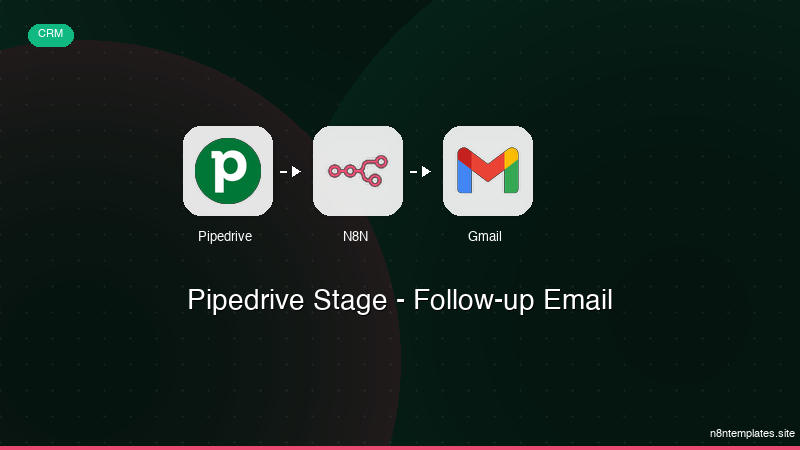
Nao comece do zero. O Pipedrive Stage - Follow-up Email e um workflow n8n pronto para instalar que faz exatamente isso — em minutos, nao horas.
Instalar por $39 →

