
How to Automate Lead Capture with n8n: A Step-by-Step Guide
Manual lead capture is one of those problems that looks simple until you're drowning in form submissions, spreadsheet updates, and forgotten follow-ups. If you're spending more than a few minutes a da
Manual lead capture is one of those problems that looks simple until you're drowning in form submissions, spreadsheet updates, and forgotten follow-ups. If you're spending more than a few minutes a day moving leads from one tool to another, you're doing it wrong. n8n lets you wire up the entire pipeline — form submission to CRM entry to Slack notification to welcome email — in a single workflow that runs without you. This guide walks through exactly how to build it.
What You'll Need Before You Start
Before opening n8n, get your stack clear. Lead capture automation connects multiple systems, and you need credentials ready for each one. Trying to find API keys mid-build kills momentum.
- n8n instance — self-hosted or cloud. Self-hosted gives you more control; cloud is faster to start.
- Lead source — Typeform, Tally, Webflow Forms, or a simple webhook. Any tool that can POST data works.
- CRM — HubSpot, Pipedrive, Airtable, or even a Google Sheet. Pick what your team actually uses.
- Notification channel — Slack or email. Your sales team needs to know a lead arrived.
- Email tool — Gmail, SendGrid, or Mailchimp for the welcome sequence.
One credential missing means one broken node. Get them all before you build.
Building the Core Workflow
The architecture is linear: trigger receives the lead, transform the data, write to CRM, notify the team, send the welcome email. Five nodes, maybe six if you add a filter. Here's how to build each step.
- Trigger node: Use a Webhook node. Set it to POST, copy the URL, and paste it into your form tool as the submission endpoint. This is your entry point for everything.
- Set node (data normalization): Form payloads are messy. Field names vary by tool. Use a Set node immediately after the trigger to map raw fields to clean names:
first_name,email,phone,source. Every downstream node reads from this normalized structure. - CRM node: Add your CRM integration — HubSpot has a native node, Pipedrive too. Map your normalized fields to the CRM fields. Set duplicate handling: check if the email exists first with a Search node, then branch with an IF node to either create or update.
- Slack node: Send a message to your sales channel. Include name, email, and lead source in the message. Keep it short — just enough for someone to act immediately.
- Email node: Send the welcome email through Gmail or SendGrid. Use the normalized
first_namefield to personalize the subject line. Don't overthink this — a plain-text email with one clear next step converts better than a designed template.
Test each node individually before running the full workflow. n8n's execution view shows you exactly what data each node receives and outputs, which makes debugging fast.
Handling Edge Cases That Will Actually Happen
A workflow that works 95% of the time creates more work than doing it manually. You need to handle the cases that will definitely occur in production.
- Duplicate leads: Someone submits the form twice. Before creating a CRM record, search by email. If found, update the existing record instead of creating a duplicate. An IF node after the search handles this branch cleanly.
- Missing required fields: Add an IF node right after your Set node. Check that
emailis not empty. If it is, route to an error branch that logs the submission to a Google Sheet for manual review instead of letting it fail silently. - CRM API rate limits: If you're getting sudden volume spikes — from a webinar, a product launch — add a Wait node before the CRM write. One second between calls keeps you under most API limits without noticeable delay.
- Webhook timeouts: Form tools expect a fast response. Your webhook should respond immediately and do the heavy processing asynchronously. n8n handles this natively — the webhook responds 200 OK and the workflow continues running.
Error handling is not optional. Add an Error Trigger workflow that catches failures and sends you a Slack DM with the failed execution ID. You want to know when something breaks, not find out when a lead complains they never heard back.
Scaling and Monitoring the Workflow
Once the workflow runs reliably, the work shifts to visibility and scale. A workflow you can't see is a liability.
- Execution logging: n8n logs every execution. Check the executions panel weekly. Look for failed runs and fix the root cause — don't just retry.
- Lead source tagging: Pass UTM parameters through your form and into your CRM. You'll know which channel is sending the leads that actually convert, not just the ones that submit.
- Volume metrics: Add a counter to a Google Sheet or Airtable — one row per lead with timestamp and source. Gives you a live dashboard without paying for another tool.
- Multi-form support: One workflow can handle multiple forms. Add a Switch node after the trigger that routes based on a hidden
form_typefield. Each branch handles the logic specific to that form.
Lead capture automation is one of those workflows that pays back the build time within the first week. Once it's running, you stop thinking about it. Leads arrive, get logged, get notified, get emailed — without anyone touching a keyboard. If you want to skip the build and start with something production-ready, check out ready-made n8n templates that cover this pattern and dozens of others. Either way, stop moving data by hand.
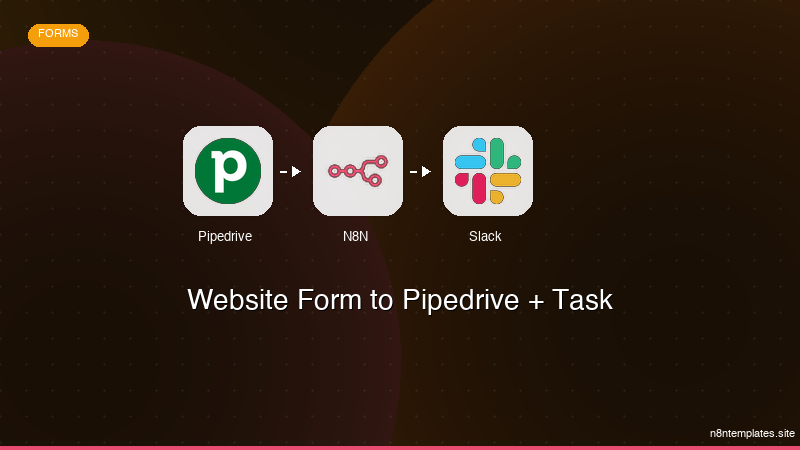
Ja construimos isso pra voce
Nao comece do zero. O Website Form to Pipedrive + Task e um workflow n8n pronto para instalar que faz exatamente isso — em minutos, nao horas.
Instalar por $29 →

