
Build a Content Calendar Automation with n8n
If you're still manually tracking what to post, when, and where, you're burning time that could go into actual content. A content calendar automation built in n8n solves this cleanly: one workflow pul
If you're still manually tracking what to post, when, and where, you're burning time that could go into actual content. A content calendar automation built in n8n solves this cleanly: one workflow pulls your content plan from a spreadsheet or Notion database, routes tasks to the right people or tools, schedules posts, and logs everything back — without you touching it daily. Here's how to build it from scratch.
What the Workflow Actually Does
Before writing a single node, get clear on the data flow. A content calendar automation typically handles three jobs:
- Reading upcoming content items from your source of truth (Google Sheets, Airtable, Notion, or a database)
- Triggering actions based on publish date — drafting, reviewing, scheduling, or posting
- Updating the source record to reflect the current status
The trigger is almost always a Schedule node firing every morning. From there, you filter records due today or in the next N days, then branch logic based on content type, platform, or status. Keep the workflow modular: one sub-workflow for social, one for blog, one for email. Trying to handle everything in a single flow turns into a debugging nightmare fast.
Setting Up the Data Source
Google Sheets is the fastest starting point — no auth headaches, everyone on your team already has access, and the n8n Google Sheets node handles reads and writes cleanly. Your sheet should have at minimum:
- Title — the content piece name
- Type — blog, social, email, video
- Platform — LinkedIn, Twitter/X, Instagram, newsletter
- Publish Date — ISO format (YYYY-MM-DD) makes date comparisons trivial
- Status — draft, ready, scheduled, published
- Assignee — optional, but useful if you're routing to Slack or email
In n8n, use the Google Sheets node in Read mode, then pipe into a Filter node checking that Publish Date equals today or falls within your window. Use an expression like {{ DateTime.fromISO($json.PublishDate).hasSame(DateTime.now(), 'day') }} to match today's items. If you're on Notion instead, the pattern is identical — just swap the node and map fields accordingly.
Routing and Executing by Platform
Once you have the day's content items, use a Switch node to branch by platform. Each branch handles the specifics of that channel:
- Social posts — connect to the Buffer, Hootsuite, or native Twitter/LinkedIn nodes. Pass the copy field directly, attach an image URL if you have one.
- Blog drafts — use the WordPress or Ghost node to create a draft post, set the scheduled publish time, and return the post ID.
- Email campaigns — trigger a Mailchimp or ActiveCampaign campaign, or create a draft in your email tool of choice.
- Internal notifications — send a Slack message to the assignee with the content brief and a link to the asset folder.
After each branch executes, merge back and write the result status to your Google Sheet. A successful post gets published; a failed one gets error with a timestamp so you can investigate without hunting through logs. This write-back step is what separates a useful automation from one that runs invisibly and leaves you guessing.
Handling Errors and Edge Cases
Production content calendars break in predictable ways. Build for them upfront:
- Missing required fields — add an IF node before each branch that checks for empty title or copy. Route incomplete records to a Slack alert instead of attempting to post.
- Duplicate execution — your Schedule node will fire even if yesterday's run failed midway. Add a status check: skip any record already marked
scheduledorpublished. - API rate limits — if you're posting to multiple platforms in batch, add a Wait node between iterations. LinkedIn in particular will throttle you fast.
- Timezone drift — always store dates in UTC and convert at the display layer. n8n's Luxon integration makes this straightforward with
DateTime.now().setZone('America/Sao_Paulo').
Turn on n8n's built-in error workflow so any unhandled exception fires a notification to your Slack or email. Don't let failures go silent — a missed post on launch day is a real problem.
The full build takes a few hours if you're comfortable with n8n, less if you're starting from a solid template. If you'd rather skip the setup and get straight to customizing, browse the collection of ready-made n8n templates — including workflows for content scheduling, social posting, and editorial pipeline management. Either way, once this is running you'll stop thinking about content logistics entirely and start thinking about the content itself, which is the point.
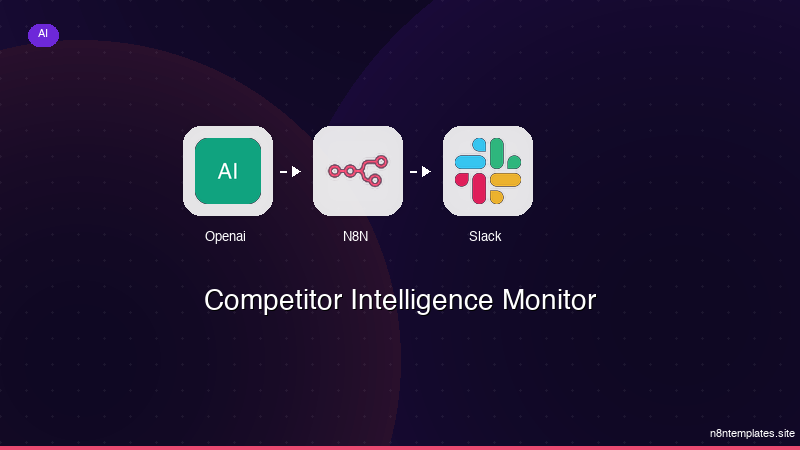
Ja construimos isso pra voce
Nao comece do zero. O Competitor Intelligence Monitor e um workflow n8n pronto para instalar que faz exatamente isso — em minutos, nao horas.
Instalar por $59 →

